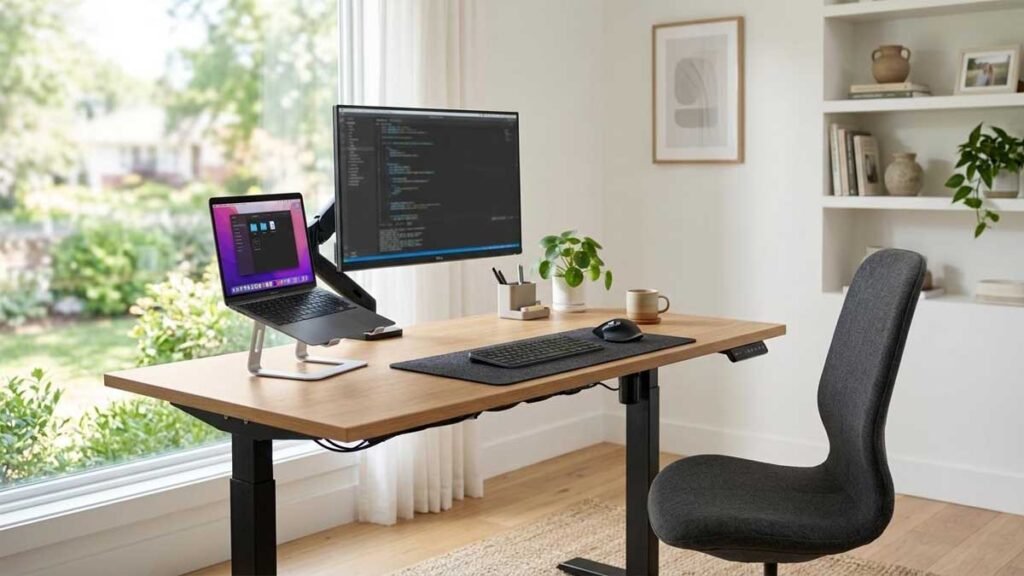
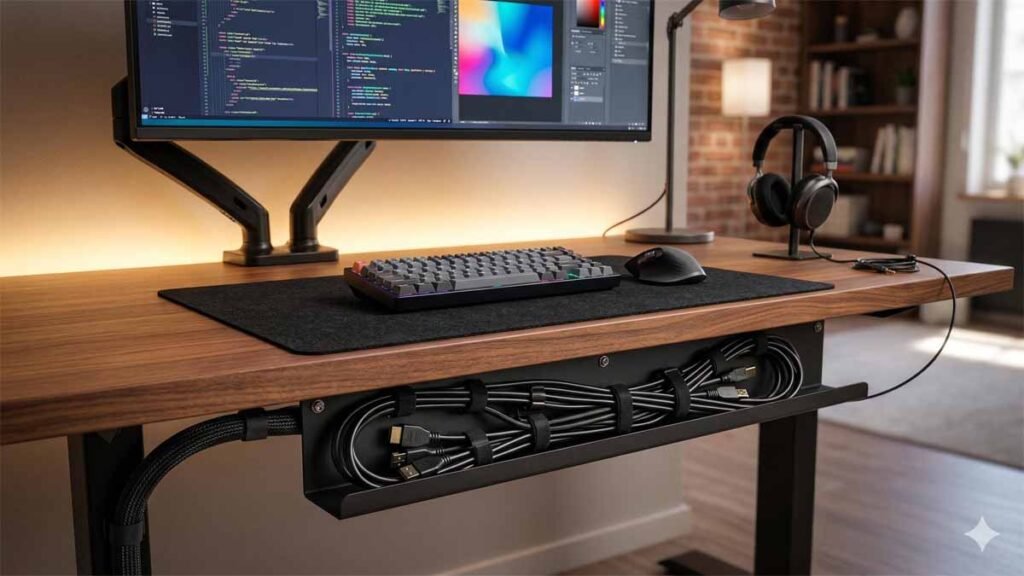
A beautiful home office can quickly become frustrating when tangled charging cords, monitor cables, and power adapters take over the space beneath your desk.
You clean the desktop, organize your keyboard, and arrange your monitor. Everything looks great until you notice the mess underneath.
The solution is a practical under desk cable management system.
You don’t need an expensive office renovation or a collection of complicated accessories. A few well-chosen organizers, careful measurements, and a simple cable-routing plan can make a noticeable difference.
Whether you’re working with a traditional computer desk, a compact apartment workspace, or an electric standing desk, there are several ways to organize cables without sacrificing accessibility.
This guide covers 15 under desk cable management ideas, compares popular organizing products, explains renter-friendly options, and shows how to manage cords safely around a height-adjustable desk.
What Is Under Desk Cable Management?
Under desk cable management refers to organizing and routing computer cables, charging cords, and compatible power accessories around the underside of a desk.
Instead of allowing wires to hang freely, you use items such as cable trays, adhesive clips, sleeves, reusable ties, and cable raceways to keep them organized.
The goal is to reduce visible clutter while maintaining convenient access to your equipment.
A typical computer workstation may contain cables for a monitor, laptop charger, keyboard, mouse, speakers, docking station, desk lamp, and internet connection.
When these cables aren’t organized, they can become difficult to identify and may interfere with your working area.
A good under desk cable management setup keeps cords easy to trace, prevents unnecessary tangling, and allows you to move or replace equipment without dismantling the entire workspace.
However, organizing cables should never involve tightly compressing electrical cords, obstructing ventilation, or hiding damaged wiring.
Safety and accessibility should come before appearance.
Why Under Desk Cable Management Matters
A well-organized workstation offers several practical advantages.
A Cleaner Workspace
Loose wires can make an otherwise attractive home office look unfinished.
Moving compatible cables into an organizer or tray helps create a more orderly appearance.
Easier Cleaning
When cords aren’t scattered across the floor, it’s easier to vacuum or clean beneath your desk.
This can be especially useful in smaller rooms where desk legs, storage furniture, and office chairs already limit access.
Less Cable Confusion
If every cord looks the same, unplugging the correct device becomes frustrating.
Labels and consistent cable routes make it easier to identify connections.
Better Use of Limited Space
A compact workspace benefits from keeping unnecessary items away from the floor and desktop.
Properly positioned organizers can reduce clutter without restricting legroom.
Reduced Tripping Hazards
The National Institute for Occupational Safety and Health identifies loose cords in work areas and walkways as potential tripping hazards.
Keeping walkways clear and organizing cords around workstations can help address that problem.
The best desk cable management plan considers safety alongside appearance.
15 Smart Under Desk Cable Management Ideas
You don’t need every solution listed below. Choose the methods that match your desk, equipment, and available space.
1. Install an Under-Desk Cable Management Tray
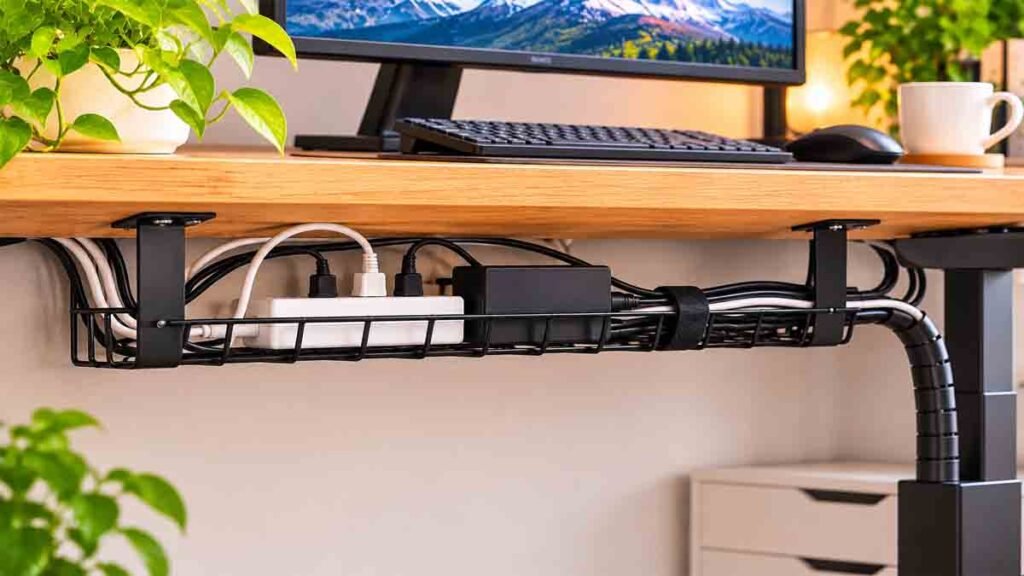
A cable management tray is one of the most practical options for a workstation with several connected devices.
These trays attach beneath the desktop and provide space for compatible cords, charging adapters, and other accessories.
Common designs include metal wire baskets, solid trays, and ventilated mounting systems.
A tray can keep cable clutter away from the floor and make equipment connections easier to find.
What to look for:
- Enough space for your actual cables and accessories.
- Suitable mounting hardware.
- Compatibility with your desktop material.
- Easy access for maintenance.
- Adequate ventilation for equipment.
- Clearance from desk frames and moving components.
If you use an adjustable desk, check the tray’s mounting position against the manufacturer’s instructions.
A desk cable organizer should not interfere with the lifting mechanism or your legs.
2. Use Reusable Cable Ties
Reusable hook-and-loop ties provide a simple way to group compatible low-voltage data and peripheral cables.
They’re useful for monitor connections, USB cables, and cords that tend to become tangled.
Unlike many single-use plastic ties, reusable versions can be opened when you need to change your setup.
This makes them especially practical for workstations that are frequently rearranged.
Group related cables loosely rather than pulling them tightly together.
Avoid tightly bundling power cords or covering power adapters in ways that could trap heat.
A cable organiser ties search may show dozens of products, but the most useful qualities are adjustability, easy removal, and suitability for the cables being organized.
3. Add Adhesive Cable Clips
Small cable clips can help route individual cords along appropriate desk surfaces.
They’re particularly convenient for keeping lightweight charging cables from falling behind the desk.
For example, you might use one clip near the edge of your desktop to hold a removable phone charging cable.
Other clips can guide compatible low-voltage cables toward a cable tray.
Choose clips suited to the cable thickness and surface material.
Clean and dry the mounting surface according to the product instructions before applying adhesive.
Avoid attaching clips directly to electrical plugs, cables that become hot, or moving parts.
4. Try a No-Drill Clamp-On Cable Organizer

Not everyone wants to drill holes into a desk.
A clamp-on cable organizer may be a useful alternative for renters, shared workspaces, or expensive desktops.
These products attach to a suitable desk edge using a mounting clamp.
Some provide a cable basket, while others offer individual routing channels.
Before buying, measure the desktop thickness and available edge clearance.
Make sure the clamp doesn’t interfere with your keyboard, chair, or adjustable desk frame.
For a rental apartment, this type of under desk cable management can be practical because compatible clamps can usually be removed without permanent desk modifications.
5. Route Data Cables Through a Cable Sleeve
A cable sleeve groups several compatible cords inside a flexible covering.
Sleeves can help organize monitor, USB, and other low-voltage data cables that travel along the same route.
Popular designs include fabric sleeves, wraparound mesh, and split tubing.
The best style depends on how frequently you need access to the cables.
A wraparound sleeve is often convenient when you add or remove peripherals.
However, don’t assume every sleeve is appropriate for every electrical cord.
Check the sleeve and equipment manufacturers’ instructions. Avoid enclosing cables or power accessories in ways that could cause overheating.
6. Use an Under-Desk Cable Raceway

A cable raceway provides a defined path for compatible wiring.
Depending on the design, it may attach beneath a desk or along a suitable wall surface.
Raceways can be helpful when several cables need to travel in the same direction.
They also create a neater appearance than leaving loose cables visible.
Some raceways use removable covers, allowing access when equipment changes.
Best for: Fixed desks where the cable route rarely changes.
Before installing a raceway, confirm that it is appropriate for the intended cable type and installation. Don’t conceal temporary electrical cords in building structures or route them through walls.
7. Label Every Important Cable
Cable labels are inexpensive and surprisingly useful.
When multiple cables disappear behind the same desk, it can be difficult to determine which connection belongs to each device.
You can label compatible cables according to their purpose.
Examples include:
- Main monitor
- Laptop docking station
- USB hub
- Speakers
- Ethernet connection
- Desk light
Use small identification labels that don’t obstruct connectors or cover important product markings.
If you change computers or monitors frequently, this simple system can save time.
Labeling is an important part of under desk cable management because organization should make maintenance easier, not harder.
8. Position Your Docking Station Thoughtfully
A laptop docking station can simplify a workspace with several peripheral devices.
But where you place it matters.
If the dock is too far from your laptop, its connection cable may stretch awkwardly across the desktop.
If it’s placed underneath the desk, you may have difficulty reaching frequently used ports.
Choose a location that keeps connections accessible and follows the manufacturer’s ventilation requirements.
A dedicated shelf or suitable mounting system may help, but verify compatibility before installing anything.
For many users, a dock positioned neatly at the rear of the desktop is simpler than mounting it underneath.
9. Organize Cables Around a Monitor Arm
Monitor arms can free desktop space, but the monitor still needs power and data connections.
Many monitor arms have built-in routing channels or clips for compatible display cables.
These can make the monitor setup look tidier.
When organizing cables around an adjustable arm, leave sufficient freedom for its intended movements.
The cables must not become stretched when the monitor is raised, lowered, rotated, or repositioned.
Check the full adjustment range before finalizing the arrangement.
This is especially important for dual-monitor workstations where several cables may move independently.
10. Keep Floor Cables Out of Walkways
Sometimes a cable must reach an outlet located away from the desk.
The first option should be to rearrange equipment or use an appropriate permanent outlet location where possible.
If a cable crosses a walking area, it can create a trip hazard.
Don’t route power cables beneath rugs, carpets, or heavy furniture to hide them.
The Electrical Safety Foundation International advises against these practices because they can damage cords or contribute to overheating.
If a long-term workstation needs additional electrical access, consult a qualified electrician rather than depending on an improvised extension-cord arrangement.
A clean floor is useful, but electrical safety matters more than making every cord invisible.
11. Use a Desktop Cable Organizer for Charging Cords
Not every cable needs to be hidden underneath the desk.
Frequently used charging cables may be more convenient in a small desktop organizer.
A desk cable organizer can keep phone, tablet, and accessory charging connections within reach.
This is particularly helpful when you connect and disconnect devices several times a day.
Choose a compact design that doesn’t take up unnecessary working space.
The goal is to keep the workstation functional rather than hiding equipment you constantly need.
12. Organize Standing Desk Cables for Movement
Height-adjustable desks require special planning.
Unlike a fixed desk, the desktop moves vertically while connected equipment remains powered.
The cable arrangement must accommodate the full intended range of motion.
Check the desk manufacturer’s cable-management instructions and approved accessories.
Cords should remain clear of lifting columns, moving joints, and other pinch points.
The desk should be able to move without pulling against wall outlets or equipment connectors.
For a standing desk, under desk cable management needs to account for movement as well as organization.
If cables are too short or connections are uncertain, stop and correct the setup rather than forcing the desk to move.
13. Keep Power Accessories Accessible and Ventilated

Some people place power strips inside under-desk organizers.
If considering this arrangement, follow the specific power-strip and organizer manufacturers’ mounting and ventilation instructions.
Not every tray or enclosure is suitable for holding electrical equipment.
Avoid enclosed spaces that trap heat, obstruct switches, or make damaged cords difficult to inspect.
Power strips should be appropriately rated for their connected devices and plugged directly into suitable wall outlets.
Don’t connect one power strip to another.
If the existing electrical arrangement doesn’t meet your workspace needs, an electrician can advise on an appropriate permanent solution.
14. Create a Simple Cable Route for Small Desks
A small home office doesn’t necessarily require a complicated under desk cable management system.
For a compact workstation, start with the shortest sensible cable route.
Identify the devices you use every day and remove any disconnected accessories you no longer need.
Position your monitor, laptop, and other equipment before selecting organizers.
Then choose a small number of appropriate routing products.
For example, a compact desk may only need a removable charging-cable clip, a suitable data-cable sleeve, and an accessible place for compatible adapters.
Too many cable organizers can create more clutter than they remove.
15. Build a Cable System That’s Easy to Maintain
The best cable organization system is one you can adjust later.
Computers, monitors, and accessories change.
A setup that looks perfect today may need rearranging when you replace a laptop or add a second display.
Use removable organizers where practical.
Leave important connections accessible and avoid permanent modifications that make future maintenance difficult.
Keep a simple record of your equipment connections if your workstation is complicated.
A good under desk cable management plan should make everyday work easier, not turn a simple cable replacement into a major project.
Under Desk Cable Management Products Compared
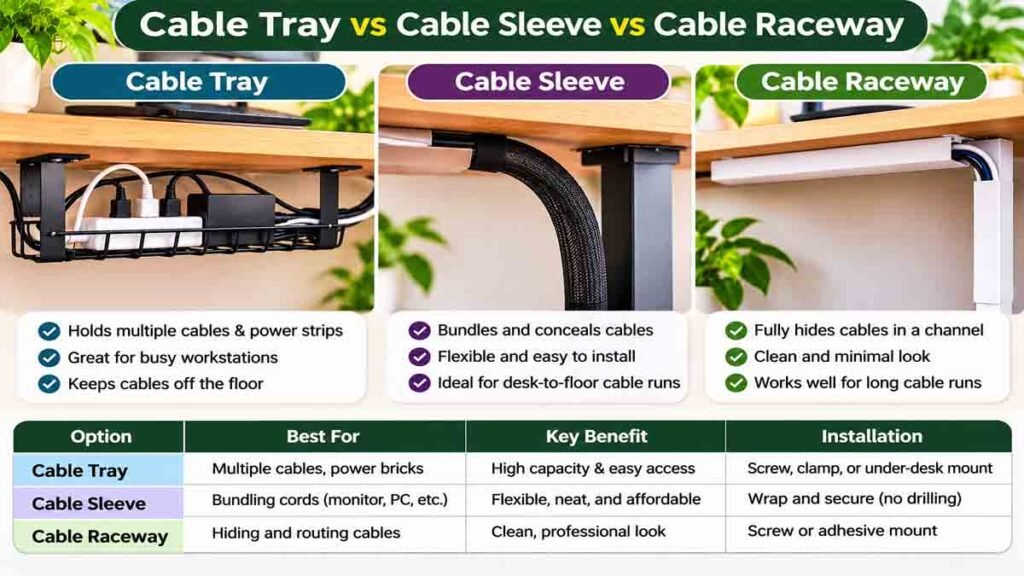
Not every organizer works the same way.
The following table can help you choose the most appropriate solution.
| Organizer | Main Purpose | Suitable Situation | Limitation |
|---|---|---|---|
| Cable tray | Holds compatible cables and accessories | Multiple-device workstations | Needs mounting space |
| Hook-and-loop ties | Groups suitable cables | Changing computer setups | Must not be overtightened |
| Adhesive clips | Guides individual light cables | Compact desks | Adhesive may fail |
| Clamp-on organizer | Removable cable organization | Renters and shared desks | Desk thickness matters |
| Cable sleeve | Groups compatible cable runs | Monitor and data cables | Cable-type restrictions |
| Raceway | Creates a defined cable route | Fixed workstations | Installation suitability varies |
| Cable labels | Identifies connections | Multi-device workstations | Requires updating |
For many home offices, one appropriately sized cable tray combined with reusable data-cable ties and labels is a reasonable starting point.
But the correct solution depends on the desk and equipment.
How to Plan Under Desk Cable Management Step by Step
Before purchasing accessories, take time to understand your current setup.
Step 1: Identify Your Equipment
Make a list of everything connected to the workstation.
Check which items require power and which use data cables.
This helps you understand how many connections need organizing.
Step 2: Measure the Workspace
Measure the desktop width, depth, and available clearance underneath.
Check the desk frame and the space needed for your legs.
OSHA recommends providing sufficient clearance beneath computer workstations to avoid awkward working positions.
Don’t sacrifice that clearance for storage or cable organizers.
Step 3: Choose Suitable Organizers
Select products based on your equipment and mounting requirements.
An under desk cable management tray may work well for one desk, while lightweight clips may be sufficient for another.
Step 4: Arrange Equipment Before Final Routing
Position the monitor, keyboard, laptop, and other accessories as you intend to use them.
This reduces the need to repeatedly change the cable layout.
For adjustable desks, review the manufacturer’s instructions before arranging cords around moving parts.
Step 5: Inspect the Finished Workspace
Check that cables remain accessible, are not pinched, and do not restrict normal movement.
Make sure electrical equipment has appropriate ventilation and the leg area remains clear.
If anything feels unsafe or incompatible, stop and consult the relevant manufacturer or a qualified professional.
No-Drill Under Desk Cable Management for Renters
If you rent your home or use a desk that you don’t own, permanent mounting may not be an option.
Fortunately, several cable management products are removable.
Clamp-On Organizers
These attach to a compatible desk edge without drilling.
They can be useful for holding lightweight cables or an appropriately rated organizer.
Removable Cable Clips
Some adhesive clips are designed for temporary installation.
Check whether the product is suitable for your surface and whether removal could damage the finish.
Reusable Ties
Hook-and-loop ties are useful for organizing suitable low-voltage cords without permanently altering furniture.
Freestanding Accessories
A freestanding organizer or compact desktop cable holder can help keep frequently used connections accessible.
For renters, the best under desk cable management arrangement is often the simplest one.
Choose products that can be removed without damaging the desk and that won’t create electrical or mechanical hazards.
Under Desk Cable Management for Standing Desks
Standing desk cable management deserves a separate discussion because the desk’s moving components introduce additional considerations.
A cable arrangement that works on a fixed desk may not work on an electric height-adjustable model.
Consider the Full Movement Range
An adjustable desk needs a cable layout that accommodates both seated and standing positions.
Check how the desk’s legs, frame, desktop, and connected equipment move.
Never assume that a cord will remain clear simply because it looks organized while the desk is lowered.
Keep Cables Clear of Moving Components
Cables should not become trapped between moving parts or pulled against connectors.
Use manufacturer-approved routing accessories where available.
Check Access to Power
The electrical connection must remain suitable throughout normal desk operation.
If an outlet or cable arrangement doesn’t accommodate the desk’s intended use, consult the desk manufacturer or a qualified electrician.
Avoid Overloading the Desktop
Organizers, accessories, and mounted equipment contribute to the load carried by the desk.
Check the manufacturer’s total weight rating and mounting restrictions.
When planning under desk cable management for a standing desk, safety and compatibility are more important than hiding every visible wire.
Common Under Desk Cable Management Mistakes
A tidy-looking setup isn’t necessarily a good setup.
Avoid these mistakes.
1. Tightly Bundling Electrical Cords
Avoid arrangements that compress power cords, trap heat, or conflict with equipment instructions.
2. Connecting Multiple Power Strips
This practice is commonly called daisy chaining.
The Electrical Safety Foundation International and university electrical safety guidance warn against it.
Use appropriately rated equipment and proper electrical outlets.
3. Hiding Cords Beneath Rugs
Power cords should not be concealed beneath carpets or rugs.
They can become damaged or overheated.
4. Blocking Desk Legroom
An organizer should not interfere with your knees, feet, or normal sitting position.
5. Forgetting Standing Desk Movement
A desk that changes height needs cable routing designed around that movement.
6. Buying Before Measuring
Check your desktop and frame dimensions before ordering any organizer.
7. Making Important Connections Inaccessible
You should be able to identify and inspect connections when necessary.
The purpose of under desk cable management is organization, not permanently concealing electrical problems.
Budget-Friendly Desk Cable Management Ideas
You don’t have to purchase a large collection of accessories.
Start with your existing workstation and prioritize the most useful improvement.
| Setup Level | Suggested Approach |
|---|---|
| Minimal | Remove unused cables and label connections |
| Basic | Add removable clips and suitable reusable ties |
| Organized | Use a compatible tray with labels and cable routes |
| Adjustable Desk | Follow manufacturer-approved cable routing and mounting guidance |
| Multiple Monitors | Organize compatible display cables around monitor arms |
These are setup categories, not fixed price ranges.
Product costs vary by material, size, manufacturer, and retailer.
Start with products that solve a clear problem rather than buying accessories for appearance alone.
Under Desk Cable Management Buying Checklist
Before ordering accessories, consider these questions:
- Is the organizer suitable for my desk material?
- Does it fit the available mounting space?
- Will it interfere with drawers or desk movement?
- Is there enough room for my legs?
- Can I access connections when needed?
- Is it approved for the intended cable or equipment type?
- Will it allow appropriate ventilation?
- Can it be removed for future changes?
- Does it support the stated load?
- Are installation instructions clear?
An attractive cable organizer for desk use isn’t automatically compatible with every home office.
Practical measurements and manufacturer guidance should drive your decision.
Frequently Asked Questions
What is the best under desk cable management solution?
There isn’t one best solution for every desk. A compatible cable tray is useful for multi-device workstations, while removable clips and reusable ties may be sufficient for smaller setups.
How do I organize cables under my desk?
Start by identifying your equipment, then choose suitable organizers based on desk dimensions, cable types, and accessibility. Keep power connections safe and follow manufacturer instructions.
Can I manage desk cables without drilling?
Yes. Clamp-on organizers, removable clips, reusable ties, and freestanding accessories can provide options without permanent desk modifications.
Are cable trays worth buying?
A cable tray can be useful when multiple compatible cords need organizing beneath a desktop. Check its mounting requirements, accessibility, and suitability for your equipment.
How do you hide cables on a standing desk?
Follow the desk manufacturer’s cable-routing instructions. Ensure cords remain clear of moving components and can accommodate the desk’s intended height range.
Can I place a power strip in an under-desk tray?
Only if the power strip and tray manufacturers permit the arrangement and it meets applicable electrical safety requirements. Do not obstruct ventilation or overload the power strip.
What is the difference between cable sleeves and cable raceways?
A cable sleeve groups compatible cables inside a flexible covering. A raceway provides a more defined routing path, often attached to a suitable surface.
How can I organize cables in a small home office?
Begin with a simple equipment layout. Remove unused cables, keep frequently used connections accessible, and choose compact organizers that don’t reduce legroom.
Can cable management improve workspace safety?
Proper organization may reduce loose-cord tripping hazards and make maintenance easier. However, inappropriate electrical routing or overloaded accessories can introduce risks.
Do I need expensive cable management accessories?
No. Basic organizers can work well when they’re compatible with your desk and equipment. The priority should be function, accessibility, and safety.
Final Thoughts
Good under desk cable management can make an ordinary computer workspace cleaner, easier to maintain, and more comfortable to use.
You don’t need a complicated system.
Start by identifying the cables you use, measuring your workspace, and choosing organizers that match your equipment.
For a fixed desk, simple removable products may be enough.
For an adjustable standing desk, pay particular attention to cable movement, manufacturer requirements, and safe electrical connections.
Most importantly, keep the setup practical.
The best under desk cable management system is one that organizes your workspace without making your equipment harder to use or maintain.